
KinderBridge (API)/CCMS Providers Start Here
Welcome to the Arizona Child Care Electronic System (CCES)!
Get started by following the quick and easy steps below:
Step 1: Verification Code
After you sign your participation agreement, DES will send you the verification information needed to register your KinderConnect account. The PIN you are provided is the verification code.
Step 2: KinderConnect Registration
Once you receive your DES Provider ID and verification code, you are ready to register in KinderConnect. All information must match what DES has on file for the main contact of your location. Please use the guide and video below.
Step 3: Creating an Operator Account
If you have a staff member that needs to access KinderConnect for subsidy or billing purposes, a seperate account should be created for them. The first operator can create additional accounts by using the guide and video below.
Step 4: Request Your API Credentials
To connect your CCMS to KinderConnect, the registered operator will need to contact KinderSystems Support at 833-859-3433. A support agent will enable your account and provide your ID and group password that will need to be entered in your CCMS.
Step 5: Complete Integration with your Child Care Management System (CCMS)
Once you have your KinderConnect ID and Group Password, you must enter the credentials into your CCMS to complete integration with KinderConnect. Each CCMS has their own integration process. Please click on the link to your CCMS below for details.
- Procare – Integration Process
- Brightwheel – Integration Process
- Lilio (Formerly HiMama) – Integration Process
- Playground – Integration Process
- Alaris – Contact Alaris with your ID and Group password. A support team member will activate the integration on your behalf.
- Contact: support@alaris-us.com or 415-813-1410
Your CCMS may request that you input child IDs into their system. To enter KinderConnect child IDs into their profiles within your CCMS, follow these instructions: How to Obtain Child IDs from KinderConnect.
Step 6: Refer back to the Help Center
Daily attendance is collected to your CCMS. Once the monthly service period ends, providers will transmit the attendance to KinderConnect. The steps to transmit should be provided by your CCMS support.
Step 7: Generate the Provider Attendance Summary Report
The Provider Attendance Summary Report provides a detailed list of each child’s attendance days for the period you just transmitted to KinderConnect. Use this report after each transmission to verify that attendance in KinderConnect matches your CCMS records. For information about how to generate and understand the report, refer to the panels below.
Generate the Provider Attendance Summary Report
To access the Provider Attendance Summary Report, follow the quick steps below:
- Login to KinderConnect
Navigate to the Reports > Reports page - Click on the dropdown and select Provider Attendance Summary
- Enter your desired Start Date, End Date, and Contract Type. Then, press View Report
- The report will automatically download onto your device
Click on it to open - The Provider Attendance Summary will open
Understanding the Report
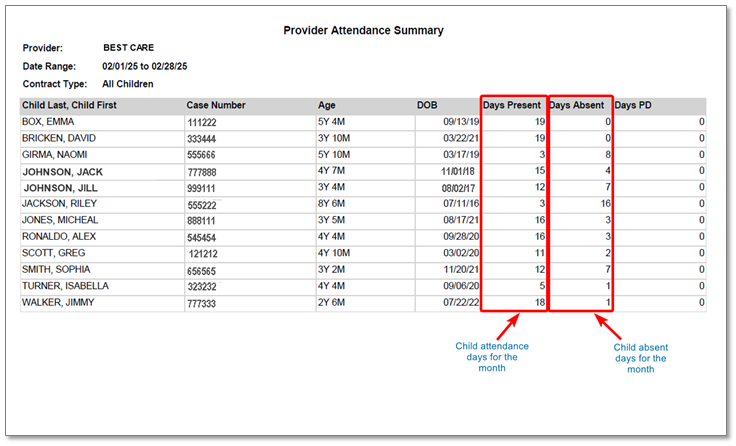
- Days Present – The total number of days a child has at least one check-in and one check-out.
- Days Absent – The total number of days a child was marked absent in your CCMS.
- If a child was scheduled but did not attend, they must be marked absent in your CCMS—even if they exceed 5 absences. This ensures accurate record-keeping.
Important Payment Reminder
- DES pays for up to 5 absences per child per month.
- If a child has more than 5 absences, only the first 5 will be paid by DES.
Step 8: Review, Correct, and Submit Attendance to AZ DES
Providers may need to correct, add absences or missed attendance, before submitting the attendance for payment.